Thursday, 6 July 2017

AngularJS Deferred & Promises

When you have started working on AngularJS. You have to deal with the asynchronous call. you must come to know $http and $resource services. These both services are used to get server side data asynchronously. To handle an asynchronous call, you need to define callbacks. Deferred-Promises is a design pattern which helps you to deal with these callbacks.

It is not a problem to work with $http/ $resource. The real problem arise when you have to deal with multiple callbacks which are dependent on each other.

Promise In Angularjs- $q Service

Promises in AngularJS is provided by $q service. $q service is a service that helps you to run your code asynchronously.

Deferred Object: Deferred is an object which exposes the promise. It has  mainly three methods resolve(), reject(), and notify(). Deferred returns promise object. When Deferred completes, You call methods either resolve(), reject(), and notify() . It calls callback register to either resolve(), reject(), or notify() according to how it has completed.


function sayHelloAsync(name) {
    return function () {
        var defer = $q.defer()
        setTimeout(function() {
            //Greet when your name is 'deepak'
            if (name == 'deepak') {
                defer.resolve('Hello, ' + name + '!');
            }
            else {
                defer.reject('Greeting ' + name + ' is not allowed.');
            }
        }, 1000);
        return defer.promise
    }   

Promise Object: A promise is an object which is return by a Deferred object. You can register different callbacks for different events resolve(), reject(), or notify() and it will execute when the async function has completed.


var helloPromise = sayHelloAsync('deepak');
helloPromise.then(function (data) {
    console.log(data);
}, function (error) {
    console.error(data);
})   

Promise API
A new promise is created when you create a defer. You can get the instance of promise object by defer.promise. It is used to getting the result of the defer when a promise has completed. There are three events where you can bind your listeners.

Some other useful features- $q.all()
$q.all() is one of the method that i use more frequently. $q.all accepts array of promises as argument. Once all of the promises get completed. you will get the result in callback function as array of results.


var promise1 = $http({method: 'GET', url: '/api-one-url', cache: 'true'});
var promise2 = $http({method: 'GET', url: '/api-two-url', cache: 'true'});
$q.all([promise1, promise2])
    .then(function(data){
        console.log(data[0], data[1]);
    });

Continue Reading →

Tuesday, 4 July 2017

AngularJS Life Cycle

An Overview of the AngularJS Life Cycle
Now that you understand the components involved in an AngularJS application, you need to understand what happens during the life cycle, which has three phases: bootstrap, compilation, and runtime. Understanding the life cycle of an AngularJS application makes it easier to understand how to design and implement your code.
The three phases of the life cycle of an AngularJS application happen each time a web page is loaded in the browser. The following sections describe these phases of an AngularJS application.

The Bootstrap Phase
The first phase of the AngularJS life cycle is the bootstrap phase, which occurs when the AngularJS JavaScript library is downloaded to the browser. AngularJS initializes its own necessary components and then initializes your module, which the ng-app directive points to. The module is loaded, and any dependencies are injected into your module and made available to code within the module.

The Compilation Phase
The second phase of the AngularJS life cycle is the HTML compilation stage. Initially when a web page is loaded, a static form of the DOM is loaded in the browser. During the compilation phase, the static DOM is replaced with a dynamic DOM that represents the AngularJS view.
This phase involves two parts: traversing the static DOM and collecting all the directives and then linking the directives to the appropriate JavaScript functionality in the AngularJS built-in library or custom directive code. The directives are combined with a scope to produce the dynamic or live view.

The Runtime Data Binding Phase
The final phase of the AngularJS application is the runtime phase, which exists until the user reloads or navigates away from a web page. At that point, any changes in the scope are reflected in the view, and any changes in the view are directly updated in the scope, making the scope the single source of data for the view.
AngularJS behaves differently from traditional methods of binding data. Traditional methods combine a template with data received from the engine and then manipulate the DOM each time the data changes. AngularJS compiles the DOM only once and then links the compiled template as necessary, making it much more efficient than traditional methods.


x
Continue Reading →

Friday, 30 June 2017

Factory Pattern Example Code in C#

In This Console Program I have Created an Interface and two Classes to implement the Interface.
Next, I created the factory class clsFactory, in which conditions are there to create object. In this class besically, method decides which class object to be created.
In the Main method I'm calling the Factory class.

See the below code:
using System;

namespace testDemo
{
    public interface IMath
    {
        int GetData(int num1int num2);
    }

    public class Addition : IMath
    {
        public int GetData(int num1int num2)
        {
            int Final = num1 + num2;
            return Final;
        }
    }

    public class Subtraction : IMath
    {
        public int GetData(int num1int num2)
        {
            int Final = num1 - num2;
            return Final;
        }
    }
    public class clsFactory
    {
        static public IMath CreateandGetObj(int choice)
        {
            IMath imath = null;

            switch (choice)
            {
                case 1:
                    imath = new Addition();
                    break;
                case 2:
                    imath = new Subtraction();
                    break;
                default:
                    imath = new Addition();
                    break;
            }
            return imath;
        }
    }

public class Program
    {
        static void Main()
        {
            Console.WriteLine("What Operation you Want?");
            Console.WriteLine("1: Addition");
            Console.WriteLine("2: Subtraction");
            Console.WriteLine("Enter you Option and press Enter: ");
            string i = Console.ReadLine();
            IMath ObjIntrface = null;
            ObjIntrface = clsFactory.CreateandGetObj(Convert.ToInt16(i));  // 1= Add, 2= subtract
            int res = ObjIntrface.GetData(47);
            Console.WriteLine(res);
            Console.ReadLine();
        }
    }

See the Output:

Continue Reading →

Sunday, 21 May 2017

SSIS- Interview Questions

Q: What is SSIS? How it is related with SQL Server.
SQL Server Integration Services (SSIS) is a component of SQL Server which can be used to perform a wide range of Data Migration and ETL operations. SSIS is a component in MSBI process of SQL Server.
This is a platform for Integration and Workflow applications. It is known for a fast and flexible OLTP and OLAP extensions used for data extraction, transformation, and loading (ETL). The tool may also be used to automate maintenance of SQL Server databases and multidimensional data sets.

Q: What is a workflow in SSIS 2014 ?
Workflow is a set of instructions on to specify the Program Executor on how to execute tasks and containers within SSIS Packages.

Q. What is a project and Package in SSIS?
Project is a container for developing packages. Package is nothing but an object. It implements the functionality of ETL — Extract, Transform and Load — data.

Q. What are the 4 elements (tabs) that you see on a default package designer in BIDS?
Control Flow, Data Flow, event Handler and package explorer. (Parameters – 2012 Data Tools)

Q. What is a Control flow and Data Flow elements in SSIS?

Control Flow:

Control flow element is one that performs any function or provides structure or control the flow of the elements. There must be at least one control flow element in the SSIS package. In SSIS a workflow is called a control-flow. A control-flow links together our modular data-flows as a series of operations in order to achieve a desired result.

A control flow consists of one or more tasks and containers that execute when the package runs. To control order or define the conditions for running the next task or container in the package control flow

Data Flow:

All ETL tasks related to data are done by data flow elements. It is not necessary to have a data flow element in the SSIS package. A data flow consists of the sources and destinations that extract and load data, the transformations that modify and extend data, and the paths that link sources, transformations, and destinations. Before you can add a data flow to a package, the package control flow must include a Data Flow task. The Data Flow task is the executable within the SSIS package that creates, orders, and runs the data flow. A separate instance of the data flow engine is opened for each Data Flow task in a package.


What are the 3 data flow components in SSIS?

Ans:

Source
Transformation
Destination

Q. What are connections and connection managers in SSIS?

Ans:

Connection as its name suggests is a component to connect to any source or destination from SSIS — like a sql server or flat file or lot of other options that SSIS provides. Connection manager is a logical representation of a connection.

12) Explain what is connection managers in SSIS?

While gathering data from different sources and writing it to a destination, connection managers are helpful.  Connection manager facilitates the connection to the system that include information’s like data provider information, server name, authentication mechanism, database name, etc.

Q. What is the use of Check Points in SSIS?

SSIS provides a Checkpoint capability which allows a package to restart at the point of failure.

Q. Name Transformations available in SSIS?

DATACONVERSION: Converts columns data types from one to another type. It stands for Explicit Column Conversion.

DATAMININGQUERY: Used to perform data mining query against analysis services and manage Predictions Graphs and Controls.

DERIVEDCOLUMN: Create a new (computed) column from given expressions.

EXPORTCOLUMN: Used to export a Image specific column from the database to a flat file.

FUZZYGROUPING: Used for data cleansing by finding rows that are likely duplicates.

FUZZYLOOKUP: Used for Pattern Matching and Ranking based on fuzzy logic.

AGGREGATE: It applies aggregate functions to Record Sets to produce new output records from aggregated values.

AUDIT: Adds Package and Task level Metadata: such as Machine Name, Execution Instance, Package Name, Package ID, etc..

CHARACTERMAP: Performs SQL Server column level string operations such as changing data from lower case to upper case.

MULTICAST: Sends a copy of supplied Data Source onto multiple Destinations.

CONDITIONALSPLIT: Separates available input into separate output pipelines based on Boolean Expressions configured for each output.

COPYCOLUMN: Add a copy of column to the output we can later transform the copy keeping the original for auditing.

IMPORTCOLUMN: Reads image specific column from database onto a flat file.

LOOKUP: Performs the lookup (searching) of a given reference object set to a data source. It is used for exact matches only.

MERGE: Merges two sorted data sets into a single data set into a single data flow.

MERGEJOIN: Merges two data sets into a single dataset using a join junction.

ROWCOUNT: Stores the resulting row count from the data flow / transformation into a variable.

ROWSAMPLING: Captures sample data by using a row count of the total rows in dataflow specified by rows or percentage.

UNIONALL: Merge multiple data sets into a single dataset.

PIVOT: Used for Normalization of data sources to reduce anomalies by converting rows into columns

UNPIVOT: Used for de-normalizing the data structure by converts columns into rows in case of building Data Warehouses.

What is conditional split?

As the name suggest, this transformation splits the data based on condition and route them to different path. The logic for this transformation is based on CASE statement. The condition for this transformation is an expression. This transformation also provides us with default output, where rows matching no condition are routed. Conditional split is useful in scenarios like Telecom industry data you want to divide the customer data on gender, condition would be:
GENDER == ‘F’

Continue Reading →

Saturday, 20 May 2017

SSIS - A Basic Demo

Creating SSIS project and getting started

So let’s understand the very first requirement of the project. Goal of this demo is understanding SSIS project basics.

In this Demo we are going to learn, how we can Upload data from a txt file to Sql server database.

We have Customer.txt file as follows. (Make sure you create one and save it somewhere for demo purpose.)


Note: DOB is in “dd/mm/yyyy” format.

First requirement is,loading data from above text file into Customer table in the SSISDB database in Sql server management studio. (Create the database and table in your machine for demo purpose)


Step 1 Create SSIS project.


Goto File menu and click on New Project Option. 


Select Integration Service Project and click Ok button. (Change the Project name if you want.)


Step 2 Create New Package

·         In SSIS world Package is an executable file.
·         Visual studio provides a UI interface called SSIS designer for designing packages.
·         Internally package is an XML file which will be executed by special utility called dtsexec.This utility will installed as a part of MSBI installation. 
·         Packages will be have an extension called DTSX which stands for Data transformation services executable. In earlier version of sql server to perform ETL we had a feature called Data Transformation services. DTSX is named after it.
                          
Step 3 Design Control Flow

Double click the new created package in solution explorer.
As you can see in SSIS designer we have several tabs Control Flow, Data Flow, Parameters, Event Handlers, and Package Explorer. We will look into each one of these tabs one by one.
Right now we are interested in Control Flow tab.

·         This tab will let us decide what need to be done.
·         You will notice we have SSIS toolbox in left side. If it is not available in your demo then you can get it from View>>Other Windows>>SSIS toolbox.

Toolbox contains tasks like Data Flow Task, Execute Sql Task etc. Each task let us achieve some different behaviour.

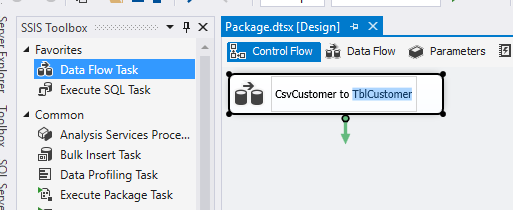
·         Right now our requirement asks us to load data from a text file to Sql server database and for that we will be required DataFlow Task. Simply drag the task from SSIS toolbox to SSIS designer.
Right click the newly created Data Flow Task and select rename. Name it as CsvCustomer to TblCustomer.


Step 3 Add DestinationConnection Manager

Other than all these tabs, SSIS designer also provides something called Connection Managers section. It's located in the bottom Corner of the designer.
Simply right click the area and select New Ado.Net Connection…”


Click New button

Enter Server Name, Enter Credential, and Select Database and click OK.


Click Ok again.
Rename connection manager if you want.


Step 4 Add SourceConnection Manager

Now its time to add Source Connection Manager.
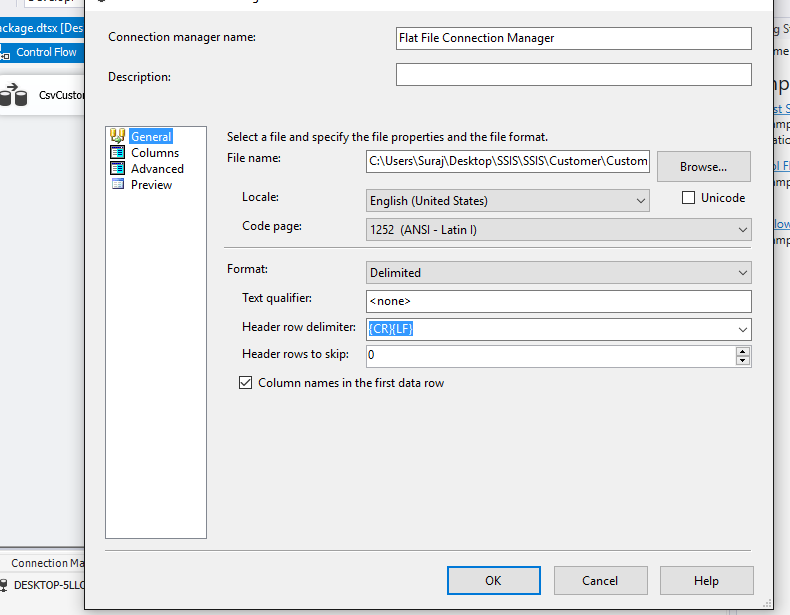
Right click the connection manager area but this time select New Flat file Connection...
It will launch Flat file Connection manager editor.


In left side of the dialog couple of sections are defined like General, Columns, and Advanced etc.
Select Columns sections. No need to change any settings at this moment. Simply click Ok.
                          

Step 5 Configure Data Flow Task

After that double click Data Flow task. It will take you to Data flow tab.


Step 6 Add Source

Data flow tab is the one which will actually decide ETL. Here we will define, from where to where data will flow and if there is any transformation required or not.
As soon as you move to the Data Flow tab, you will notice a change in the SSIS toolbox.


As you can see, tasks in the toolbox is segregated into three groups Sources, Transforms and Destinations. Common is a special group which contain mostly used sources, transformations and destinations.
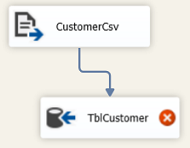
We are interested in Flat file source. You will find it in Other Sources section. Simply drag it to SSIS designer and rename it to CustomerCsv

Step 7 Configure Source
Double click the CustomerCsv source. It will launch Flat file source editor. Select “Flat File Connection Manager from the dropdown.


Move to the column section and make any changes if required and click ok.

Step 8 – Add Destination

Drag Ado.Net destination from “Other Destinations” section to SSIS designer and rename it to “TblCustomer”. 

Step 9 – Configure Destination

Destination task cannot configured unless and until it have a proper input.
Now click the “CustomerCsv” source. You will notice two arrows coming out of it. Blue one and red one. We will talk about red one later. Blue one is the one though which data will flow. Hence this arrow is called as “Data Flow Path”. Take that arrow and connect it to “TblCustomer” destination.


Step 10- Configure Destination (Continued)

Double click the “TblCustomer” destination again. In the “configuration editor window” select Connection manager from dropdown and table to “Customer”


Click on “Mappings” section and confirm that all mappings are correct.


Click ok.

Step 11- Execute and Test the package

As I said sometime back, Package will be executed by a special utility called “DtsExec.exe”. Visual studio makes our life easy at the time of development. For testing simply press F5 ☻ everything else will be handled by Visual studio and package start executing.


Open database table and check the records.


Finally achieved.☻☻☻

Continue Reading →

Topics

ADFS (1) ADO .Net (1) Ajax (1) Angular (47) Angular Js (15) ASP .Net (14) Authentication (4) Azure (3) Breeze.js (1) C# (55) CD (1) CI (2) CloudComputing (2) Coding (10) CQRS (1) CSS (2) Design_Pattern (7) DevOps (4) DI (3) Dotnet (10) DotnetCore (20) Entity Framework (5) ExpressJS (4) Html (4) IIS (1) Javascript (17) Jquery (8) jwtToken (4) Lamda (3) Linq (10) microservice (4) Mongodb (1) MVC (46) NodeJS (8) React (10) SDLC (1) Sql Server (32) SSIS (3) SSO (1) TypeScript (3) UI (1) UnitTest (2) WCF (14) Web Api (16) Web Service (1) XMl (1)

Dotnet Guru Archives